
How to Set Up IPTV on Firestick: The Complete UK Guide
Every step, from unboxing the stick to a working TV guide, plus the settings that stop buffering. Written by the team that answers setup questions every day.
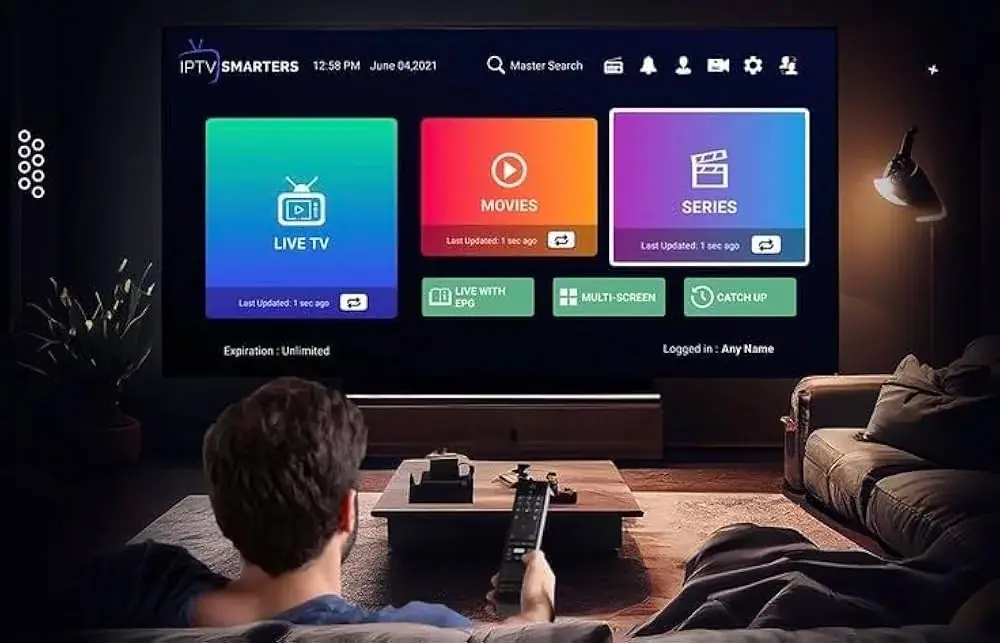
If you have just bought an IPTV subscription and you are staring at a Fire TV Stick wondering where to start, this guide is for you. We explain how to set up IPTV on Firestick from scratch, in the same order we use when we talk customers through it on WhatsApp. Allow about ten minutes, and have your Fire TV remote and your login details to hand.
We have kept it to plain English. Where a menu name is written in bold, that is exactly what you will see on screen.
Before you install IPTV on Fire TV Stick: what you need
- A Fire TV device. Any Fire TV Stick from the 3rd generation onwards, the Fire TV Stick 4K or 4K Max, or a Fire TV Cube. Older “Lite” and 2nd generation sticks work, but they can be slow with large channel lists.
- A TV with a free HDMI port and a power socket nearby. Use the power adapter that came in the box rather than the TV’s USB port: TV USB ports often don’t supply enough power, which causes random restarts.
- Broadband. About 10 Mbps for HD and 25 Mbps or more for 4K. More on that in our guide to what internet speed you need for IPTV.
- An IPTV subscription with your login details: usually a username, password and server URL (Xtream Codes), or an M3U link.
If you don’t have a subscription yet, you can ask us for a free 2-hour trial to follow along with this guide.
Step 1: plug in and update the Fire TV Stick
Every IPTV Firestick setup starts the same way. Plug the stick into the TV (use the HDMI extender from the box if it is a tight fit), connect the power and select the right HDMI input on your TV. Follow the on-screen setup: pick your language, connect to Wi-Fi and sign in to your Amazon account.
Before installing anything, update the stick. Go to Settings › My Fire TV › About › Check for Updates and install anything waiting. Updates fix bugs and improve Wi-Fi, and an out-of-date stick is one of the most common causes of problems we see.
Wi-Fi or Ethernet?
If your router is close to the TV, Amazon sells an official Ethernet adapter for Fire TV sticks. A wired connection is the single best thing you can do for a stable picture, especially in 4K. If you are using Wi-Fi, connect to the 5 GHz network if your router offers one (it may have “5G” in the name). It is faster and suffers less interference than 2.4 GHz.
Step 2: install the Downloader app
Amazon’s app store doesn’t list most IPTV players, so you need a small helper app called Downloader. It is free and published in the Amazon Appstore.
- On the home screen, go to Find (the magnifying glass) and choose Search.
- Type Downloader and select it from the suggestions.
- Choose the orange Downloader app and select Get or Download.
You can also find the official listing on Amazon UK’s Downloader page and send it to your device from a browser.

Step 3: enable Developer options and unknown apps
By default, your Fire TV only installs apps from Amazon’s store. To install an IPTV player, you give Downloader permission to install apps. On newer Fire OS versions, Developer options are hidden at first.
- Go to Settings › My Fire TV › About.
- Highlight your device name (for example “Fire TV Stick 4K Max”) and press the Select button on the remote seven times. A message tells you that you are now a developer.
- Press Back. You will now see Developer options in the My Fire TV menu.
- Open Developer options › Install unknown apps, find Downloader and switch it On.
A quick word on safety: this permission applies only to Downloader. Only install apps from links you trust, such as the ones your provider sends you or the developer’s own website. Never switch on “ADB debugging” unless you know why you need it.
Step 4: choose and install an IPTV player
The player is the app you will actually watch in. Your subscription works in several of them; the choice is about how you like to browse. These are the two we recommend most for Fire TV:
| App | Best for | Cost |
|---|---|---|
| IPTV Smarters Pro | Beginners. Big, clear buttons for Live TV, Movies and Series. | Free |
| TiviMate | People who want a proper TV guide grid and fast channel switching. | Free, with an optional premium upgrade |
We compare these and three more in detail in the best IPTV app for Firestick. If you are not sure, start with IPTV Smarters Pro. You can always add TiviMate later and log in with the same details.
Installing the player with Downloader
- Open Downloader. Allow it access to files if asked.
- In the Home tab, select the address box and type the download link for your chosen player. Your provider can send you the correct link; we include it in our welcome message.
- Select Go. The file downloads, then an install screen appears.
- Choose Install, then Done.
- Downloader offers to delete the installation file. Choose Delete twice to free up space. The app itself stays installed.
Step 5: log in with your IPTV details
Open the player. You will usually find it at the end of Your Apps & Games. Hold the Options button (three lines) on the remote and choose Move to front so it is easy to find next time.
Logging in to IPTV Smarters Pro
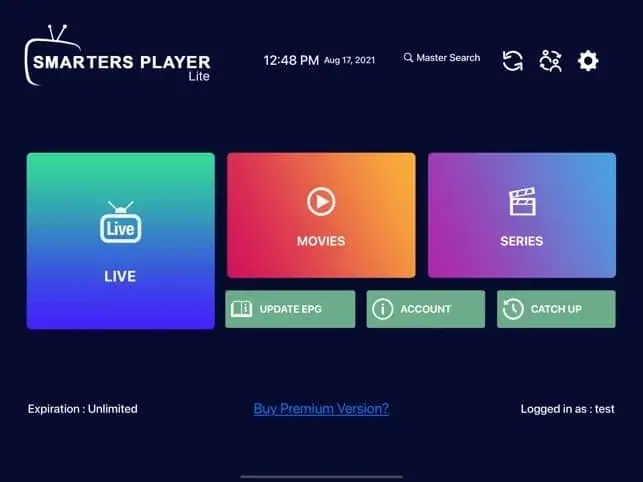
- Accept the terms, then choose Login with Xtream Codes API.
- Any name: type anything, such as “Home”.
- Username and Password: copy exactly from your message. They are case-sensitive.
- URL: the server address, including
http://and the port number if there is one. - Select Add user. The app downloads your channels, films and series.
Logging in to TiviMate
- Choose Add playlist › Xtream Codes.
- Enter the server address, then your username and password.
- TiviMate shows how many channels, films and series it found. Select Next, name the playlist and choose Done.
The very first load can take a minute or two while the app fetches the full list and the TV guide. After that it is much quicker.
Step 6: set up the TV guide (EPG)
In most cases the guide loads automatically with Xtream Codes logins. If it is blank:
- In IPTV Smarters, go to Settings › EPG and choose Update EPG.
- In TiviMate, go to Settings › EPG › Update EPG. You can also set how many days of guide to keep.
- Check the stick’s time zone and clock are right: Settings › Preferences › Time Zone. A wrong clock shifts the whole guide.
We explain how the guide works, and more fixes, in what is EPG.
Step 7: the settings that make the biggest difference
Knowing how to set up IPTV on Firestick is only half the job. Once you are watching, a few small changes make the whole experience smoother.
Picture resolution
Go to Settings › Display & Sounds › Display › Video Resolution and choose Auto. On a 4K stick with a 4K TV, you should see “up to 4K Ultra HD”. If it is stuck at 1080p, try a different HDMI port on the TV; not every port supports 4K. Our 4K IPTV UK page has more on this.
Match frame rate
Under Display › Match Original Frame Rate, switching this on can make films smoother on some TVs. If you see a black screen for a second when a stream starts, that is the TV switching mode; turn it off if it bothers you.
Player buffer settings
TiviMate: Settings › Playback › Buffer size. “Medium” or “Large” helps if your connection wobbles in the evenings. IPTV Smarters: Settings › Player selection; if one player stutters, try switching between the built-in and the external player.
Favourites
Long-press on a channel and add it to Favourites. It saves a lot of scrolling, and TiviMate lets you reorder favourites to match the channel numbers you are used to.
Troubleshooting your IPTV Firestick setup
“Invalid username or password”
Nine times out of ten this is a typing slip. Check capital letters, a letter O versus a zero, and that there are no spaces at the start or end. If it still fails, send us a photo of the screen.
Channels load but won’t play
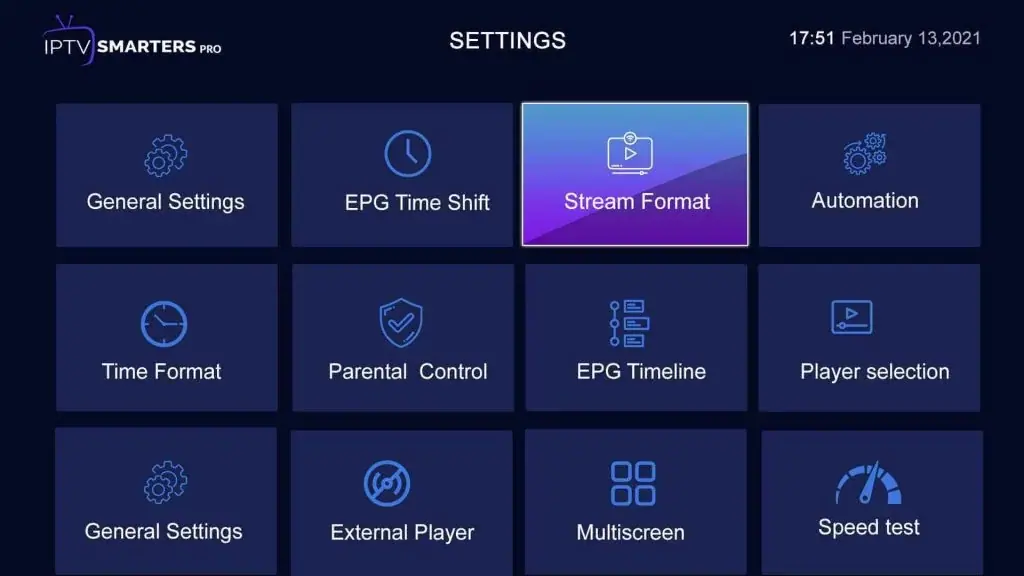
Try the stream format setting (in IPTV Smarters: Settings › Stream Format, switch between MPEGTS and HLS). Restart the stick afterwards.
Buffering or freezing
Start with the simple things: restart the router and the stick, move the stick onto 5 GHz Wi-Fi or Ethernet, and clear the app cache (Settings › Applications › Manage installed applications › your player › Clear cache). Our complete checklist is in why does IPTV buffer.
The stick is slow or apps crash
Fire TV sticks have limited storage. Uninstall apps you don’t use, clear caches, and restart the stick once a week (hold Select and Play/Pause together for five seconds).
“There is a problem with the network”
Go to Settings › Network, highlight your Wi-Fi and press Play/Pause to see the connection status. If it says “Connected with problems”, restart the router. If that doesn’t help, forget the network and reconnect.
IPTV Firestick setup: M3U playlists instead of Xtream Codes
Some providers send an M3U link instead of an Xtream login. Both IPTV Smarters and TiviMate accept M3U: choose Load your playlist or file/URL (Smarters) or Add playlist › Enter URL (TiviMate) and paste the link. Typing a long link with the remote is fiddly; the free Amazon Fire TV app on your phone includes a keyboard that makes it far easier.
Using your Fire TV Stick on holiday or in a second room
The stick is small enough to take with you. Plug it into another TV, connect to the new Wi-Fi in Settings › Network, and your player app and login are still there. If you plan to watch on two TVs at the same time, check with your provider first how many connections your plan includes.
Keeping things running smoothly
- Let Fire OS and your player app update when prompted.
- Keep at least 1 GB of free storage (Settings › My Fire TV › About › Storage).
- Restart the stick weekly and the router monthly.
- Don’t install random “cleaner” or “booster” apps; they usually make things worse.
Parental controls: keeping the kids’ Firestick safe
If children use the TV, it is worth spending two minutes on controls before you hand over the remote. There are two layers, and they work best together.
Fire TV parental controls
- Go to Settings › Preferences › Parental Controls and switch them on.
- Choose a five-digit PIN. It is linked to your Amazon account, so pick one the children won’t guess.
- Set PIN protect app launches to on. Now your IPTV player needs the PIN to open.
Parental controls inside the player
Both IPTV Smarters Pro and TiviMate let you hide or lock categories. In Smarters, look for Settings › Parental Control; in TiviMate, long-press a group and choose Hide or Lock. Locking adult categories and leaving the Kids section open works well for most families.
Setting up a second Fire TV Stick
Once you have done one IPTV Firestick setup, the second is much quicker. You still need Downloader and the Install unknown apps permission on the new stick, because those settings are per device. Then install the same player and log in with the same details. Before you watch on both sticks at the same time, check how many connections your plan allows; with us, just ask on WhatsApp.
A handy shortcut: if both sticks are signed in to the same Amazon account, apps you downloaded from the Appstore (such as Downloader) appear in Your Apps & Games › Your Library on the second stick, ready to install with one click.
Frequently asked questions
How long does it take to set up IPTV on a Firestick?
About ten minutes the first time, most of which is installing Downloader and the player. Adding the app to a second stick later takes about three.
Do I need a VPN?
No VPN is needed for the setup to work. Some people use one for privacy; if you do, pick a nearby server so your speed doesn’t drop.
Can I use the same login in two different apps?
Yes. Many people keep IPTV Smarters for films and series and TiviMate for live TV, both logged in with the same details. Just don’t play in both at the same time unless your plan allows two connections.
Will this work on a Fire TV Cube or a Fire TV edition television?
Yes. The menus are the same, and the Cube is quicker thanks to its faster processor and built-in Ethernet port.
How to set up IPTV on Firestick: the short version
That is the whole process of how to set up IPTV on Firestick: update the stick, install Downloader, allow it to install apps, add IPTV Smarters Pro or TiviMate, then log in with your details. Spend two more minutes on the resolution, buffer and favourites settings, and your Fire TV will feel just like a normal TV box, only with far more to watch.
If you get stuck at any point, message us on WhatsApp with a photo of your screen. If you are still choosing a service, have a look at our IPTV Firestick UK page or compare our plans.
Keep reading
What Is IPTV? A Plain-English Guide for UK Beginners
IPTV explained without the jargon: how internet TV works, what you need, what it costs, the difference between apps and subscriptions, and the questions to ask before you pay anyone.
Is IPTV Legal in the UK? An Honest Answer
The technology is legal; some of what is sold with it is not. A clear explanation of UK law, the risks for viewers, how to spot a legitimate service, and where we stand.
IPTV Smarters Pro Setup: Step-by-Step on Every Device
How to install IPTV Smarters Pro on Firestick, Android, Smart TV and iPhone, log in with Xtream Codes or M3U, load the TV guide and fix the errors people hit most.

Not sure which plan? Ask us first
Tell us your device and your broadband speed and we will tell you honestly what to expect from cheap IPTV UK streaming before you pay a penny.