
IPTV Smarters Pro Setup: Step-by-Step on Every Device
How to install IPTV Smarters Pro on Firestick, Android, Smart TV and iPhone, log in with Xtream Codes or M3U, load the TV guide and fix the errors people hit most.
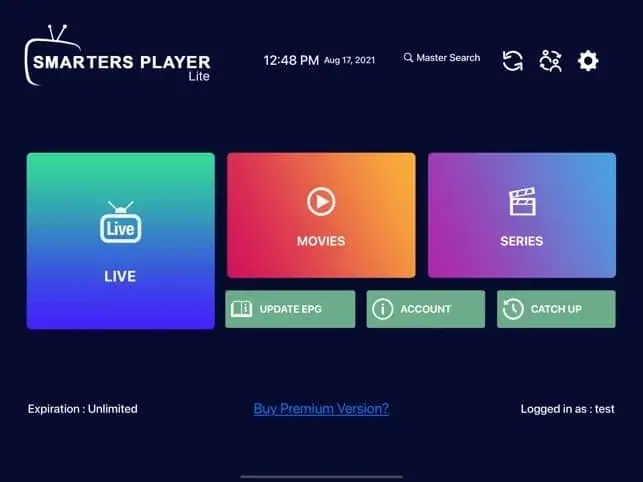
IPTV Smarters Pro is the player most of our customers start with, because it is free, clear and works on almost everything. This IPTV Smarters Pro setup guide covers installing it on each type of device, logging in, loading the TV guide and fixing the handful of problems we see every week.
One thing to know first: IPTV Smarters Pro is only a player. It doesn’t come with channels. You add your own subscription by entering the login details your provider sends you.

Before you start
- Your login details: usually a username, password and server URL (Xtream Codes), or a single M3U link.
- A connection of about 10 Mbps for HD, 25 Mbps or more for 4K.
- Five to ten minutes.
IPTV Smarters Pro setup on a Fire TV Stick
IPTV Smarters Pro is installed on Fire TV devices with the free Downloader app:
- Install Downloader from the Amazon Appstore.
- Enable Developer options: Settings › My Fire TV › About, then click your device name seven times.
- Go to Developer options › Install unknown apps and switch it on for Downloader.
- Open Downloader, enter the download link your provider gives you for IPTV Smarters Pro, and install it.
Every step, with screenshots of the menus, is in our full guide to setting up IPTV on a Firestick.
Setting up on Android phones, tablets and TV boxes
On Android phones, tablets and Android TV boxes, look for IPTV Smarters Pro in Google Play. Availability in the store can change, so if it isn’t listed for you, your provider can send the official download link and you install it with Downloader, exactly as on a Fire TV Stick. Whichever route you use, check the developer name first, because there are many lookalike apps. Then open it, accept the terms and continue to the login step below.
Setting up on iPhone and iPad
On Apple devices the app is called Smarters Player Lite, published by WHMCS Smarters in the UK App Store. It works in the same way. More options are covered in our guide to IPTV on iPhone.
Setting up on a Smart TV
On Android TV and Google TV sets (Sony, Philips, TCL and others), install it the same way as on an Android box. On Samsung and LG TVs, availability of IPTV Smarters varies by model and region; many people use IBO Player Pro or Smart IPTV instead. Our Smart TV IPTV guide explains the options.
Logging in: Xtream Codes (recommended)
- Open the app and choose Login with Xtream Codes API.
- Any Name: type anything you like, for example “Home”.
- Username and Password: copy them exactly. They are case-sensitive.
- URL: the full server address including
http://and the port number if one is given, for examplehttp://example.server:8080. - Select Add User. The app downloads your channels, films, series and guide.
Xtream Codes is the best option because it loads the TV guide and the on-demand library automatically.
Logging in with an M3U link
If your provider gives you an M3U link instead, choose Load your playlist or file/URL, select M3U URL, give it a name and paste the link. Typing a long link with a TV remote is painful, so it is worth copying it from your phone using a keyboard app. Not sure what an M3U link is? See our guide to the M3U playlist.
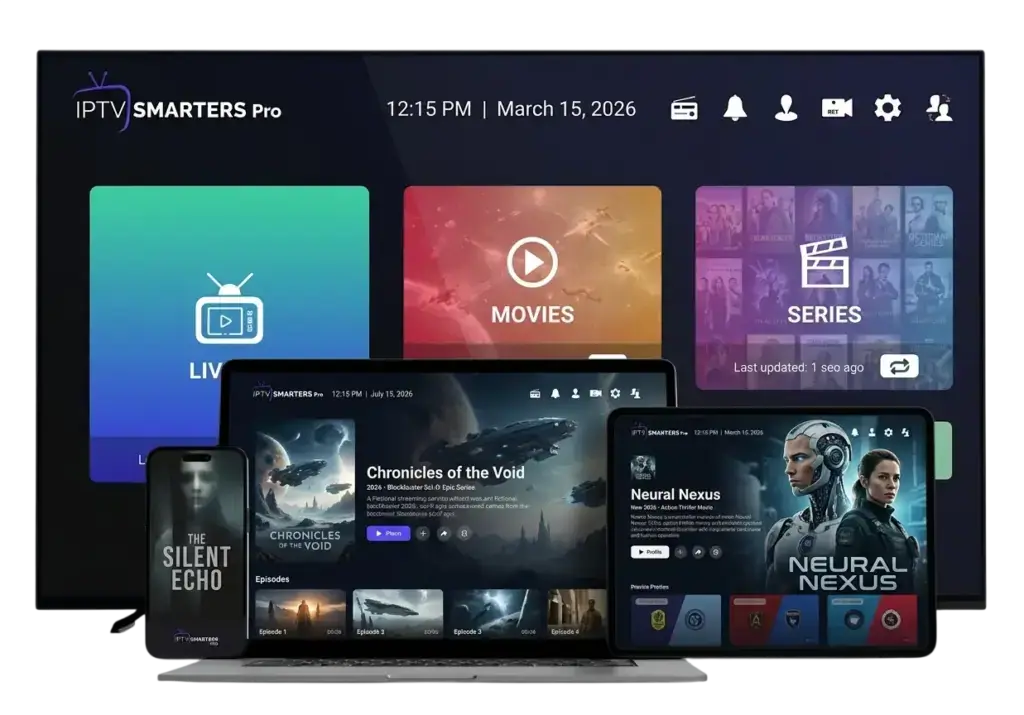
Finding your way around
- Live TV: channels grouped into categories. Press OK on a channel to preview it, and again to go full screen.
- Movies and Series: the on-demand library, with posters and descriptions.
- Catch Up: programmes you can replay, where your provider supports it.
- Install EPG / TV Guide: loads and shows the programme guide.
Settings worth changing after your IPTV Smarters Pro setup
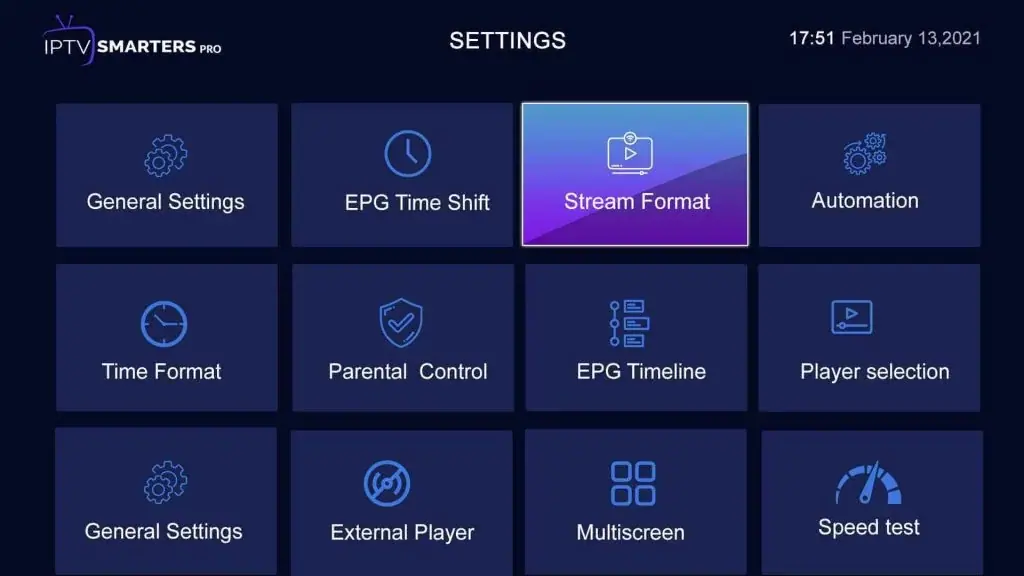
- EPG: in Settings, update the EPG after first login and set it to refresh automatically.
- Stream format: if channels won’t start, switch between MPEGTS and HLS in Settings › Stream Format.
- Player selection: if a channel stutters, try the other built-in player.
- Parental control: set a PIN and lock categories you don’t want children to see.
- Favourites: long-press a channel to add it, so you don’t have to scroll every time.
Fixing common IPTV Smarters Pro errors
“Invalid username or password”
Check capital letters, the letter O versus zero, and remove any space at the start or end. If it still fails, send your provider a photo of the screen.
“No channels found” or an empty list
Check the server URL includes http:// and the correct port. Then log out, log back in and wait a minute for the list to load.
The TV guide is empty
Choose Install EPG or Update EPG and wait. If the times are wrong, check the time zone on your device. Our article what is EPG has more fixes.
Buffering
Usually Wi-Fi or a busy network rather than the app. Try Ethernet or the 5 GHz Wi-Fi band first. Full list in why does IPTV buffer.
The app crashes or freezes
Clear the app’s cache (on Fire TV: Settings › Applications › Manage installed applications › IPTV Smarters › Clear cache), then restart the device.
Tips for a smoother IPTV Smarters Pro experience
- Use the “Recently watched” row to jump straight back into a series without searching.
- Turn on subtitles from the player controls on films and series that include them.
- Hide categories you never use in Settings, so the channel list loads faster.
- Refresh after changes. If your provider adds channels, use the reload option so they appear.
- Log out before switching accounts. It avoids mixed-up favourites and guides.
Multiple profiles and multiple screens
IPTV Smarters lets you save several user profiles, handy if you have more than one subscription. It also has a multi-screen view on some devices, but each extra stream counts as a connection, so check how many your plan allows before using it.
Summary
The IPTV Smarters Pro setup is the same on every device: install the app, choose Xtream Codes, type your details carefully, then update the TV guide. Five minutes of tweaking the stream format and favourites makes day-to-day viewing much smoother. If you get stuck, message us on WhatsApp with a photo of your screen. Looking for a subscription to use with it? Our plans work in IPTV Smarters out of the box, or ask for the free trial.
Frequently asked questions
Is IPTV Smarters Pro free?
Yes, the player is free. You pay only for your subscription.
Is IPTV Smarters Pro legal?
Yes. It is a player app with no content of its own. What you watch in it depends on your subscription; see is IPTV legal in the UK.
How long does the IPTV Smarters Pro setup take?
About five minutes once the app is installed. The first load of channels and the TV guide can take another minute or two on older devices.
Can I use IPTV Smarters Pro and TiviMate with the same login?
Yes, as long as you don’t stream in both at the same time unless your plan includes two connections.
Keep reading

What Is IPTV? A Plain-English Guide for UK Beginners
IPTV explained without the jargon: how internet TV works, what you need, what it costs, the difference between apps and subscriptions, and the questions to ask before you pay anyone.
Is IPTV Legal in the UK? An Honest Answer
The technology is legal; some of what is sold with it is not. A clear explanation of UK law, the risks for viewers, how to spot a legitimate service, and where we stand.
What Is an M3U Playlist? A Simple Guide for IPTV Users
What an M3U playlist is, what is inside one, how to load it in VLC, IPTV Smarters or TiviMate, how to add a TV guide, and how it compares with Xtream Codes.

Not sure which plan? Ask us first
Tell us your device and your broadband speed and we will tell you honestly what to expect from cheap IPTV UK streaming before you pay a penny.